A WordPress staging site is one of the best habits you can build as a site owner. It is a private copy of your live website where you can test plugin updates, try a new theme, or rebuild a page with zero risk to the real site your visitors see. In this guide you will learn exactly how to create a WordPress staging site - for free, without touching code or your hosting files - and how to push your changes live safely when you are done.
By the end you will have a simple, repeatable workflow: clone your site, experiment on the copy, then move only the changes you are happy with to production.
What is a WordPress staging site?
A staging site is a full, working duplicate of your live WordPress install: its own files, its own database, and its own admin. Because it is completely separate, nothing you do on staging ever touches the live site. It usually lives at a hidden address (for example yoursite.com/staging), sits behind a login, and is blocked from search engines so Google never indexes the copy.
Think of it as a rehearsal stage. You practice the risky change there first, and only perform it live once you know it works.
Why every WordPress site needs a staging site
Editing a live site directly is how small changes turn into downtime. A staging site removes that risk. Here is what it lets you do safely:
Test plugin and theme updates before they reach real visitors.
Redesign pages or try a new theme without a half-finished site going public.
Debug problems and try fixes without breaking checkout or contact forms.
Get client or team sign-off on changes before they go live.
Avoid downtime, because the live site keeps running untouched the whole time.
3 ways to create a WordPress staging site
There are three common approaches, from most technical to easiest.
1. Use your host's staging feature
Some managed hosts include a one-click staging button. It is convenient, but not every host offers it, the feature is tied to that host, and moving specific changes back to live is often all-or-nothing. If you switch hosting later, you lose the workflow.
2. Clone the site manually
You can build a staging copy by hand: export the database, copy all the files over FTP, then run a search-and-replace to fix the URLs. It works, but it is slow, easy to get wrong, and large sites frequently fail partway through with a PHP timeout.
3. Use a staging plugin (the easy, free way)
The simplest option is a plugin that clones your site in one click and works on any host, including cheap shared hosting. This is exactly what Revertix does: it creates a private, login-protected WordPress staging site for you, then lets you push changes back to live when you are ready.
How to create a WordPress staging site with Revertix
Here is the full process, start to finish. It takes a couple of minutes.
Install the free plugin. Add Revertix from the WordPress plugin directory and activate it, then open the new Revertix menu in your dashboard.
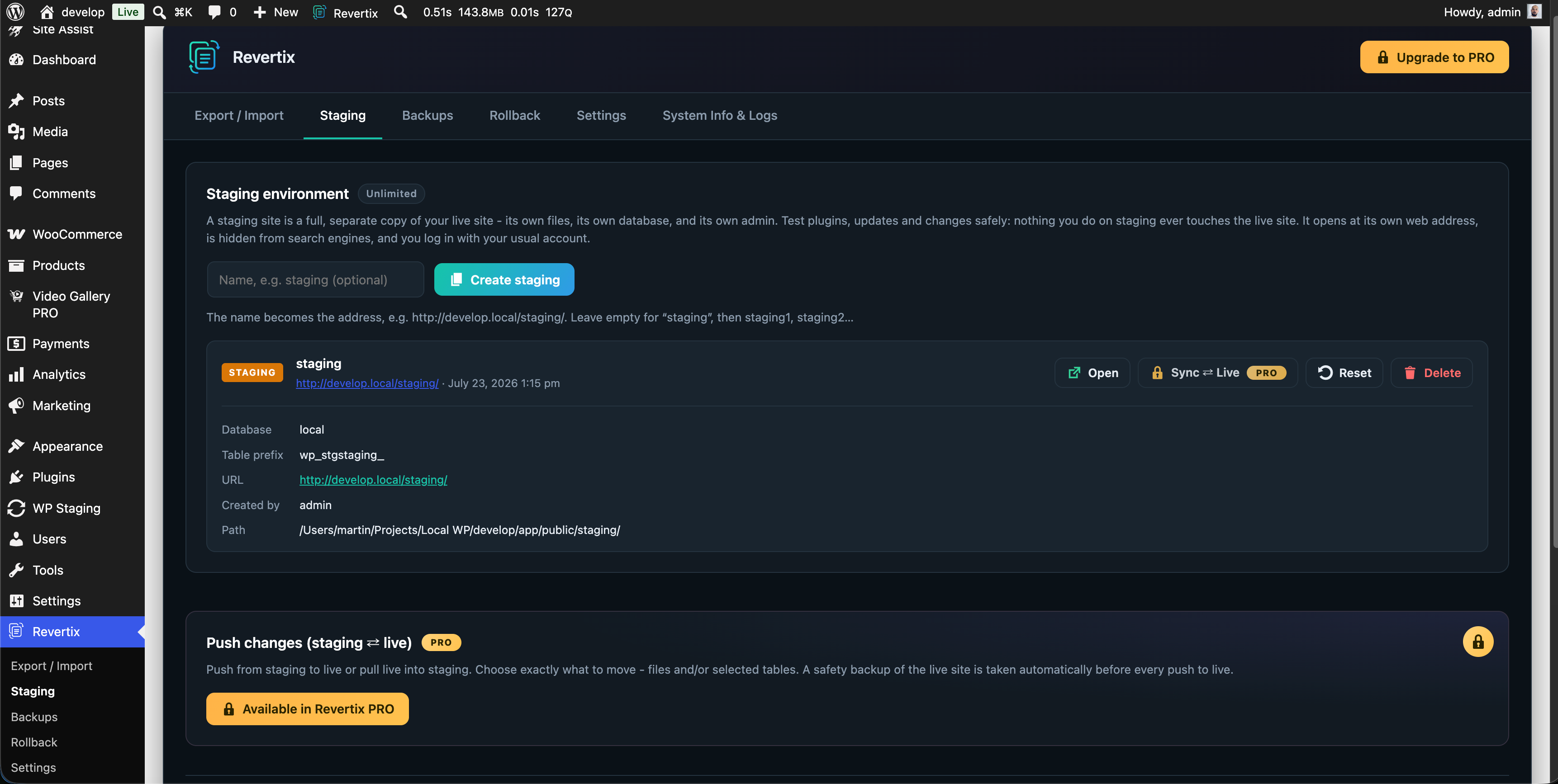
Open the Staging tab. Go to Revertix › Staging.
Click "Create staging". Give it an optional name and start the clone. Revertix copies your database and files in small, resumable chunks, so even large sites finish without timing out.
Open your staging copy. When it is ready, click Open. You log in with your usual account, and an admin-bar badge always reminds you which environment you are in.
Make your changes. Update plugins, test a redesign, or try new content - safely, on the copy instead of on live.
How to push your staging changes to the live site
Testing is only half the job; you also need to move the good changes to production. With Revertix, a full safety backup of the live site is taken automatically before any push, so the action is always reversible.
The free version gives you a simple one-click full sync. The Pro version adds a detailed sync, where you review every changed file and database row down to a line-by-line diff and apply only what you pick - so you never overwrite live orders, comments, or content by accident.
Avoid the most common staging problem: PHP timeouts
The number one reason staging and backup tools fail is the PHP execution limit. On a large site or a slow shared host, a single long clone or backup hits that limit and dies halfway through. Revertix avoids this by running every heavy job as a resumable, time-budgeted task: it works in short steps and picks up where it left off, so the job completes instead of timing out.
WordPress staging site FAQ
Is a WordPress staging site free?
Yes. You can create a fully functional staging site for free with the Revertix core plugin. Paid plans add extras like detailed push/pull sync and scheduled backups, but staging itself is free.
Will a staging site slow down my live site?
No. The staging copy runs separately from your live site, so your visitors are not affected while you work on it.
Is my staging site visible on Google?
No. Staging copies are login-protected and marked "noindex", so search engines do not crawl or list them.
Can I move only some changes to live?
Yes. With a detailed push/pull sync you can review changes file by file and line by line, and apply only the ones you choose.
Start with a staging site today
Once you have a staging workflow, you stop editing your live site with your fingers crossed. Test everything on a copy, back up before anything risky, and push changes live only when you are sure. You can create your first WordPress staging site with Revertix in a couple of minutes