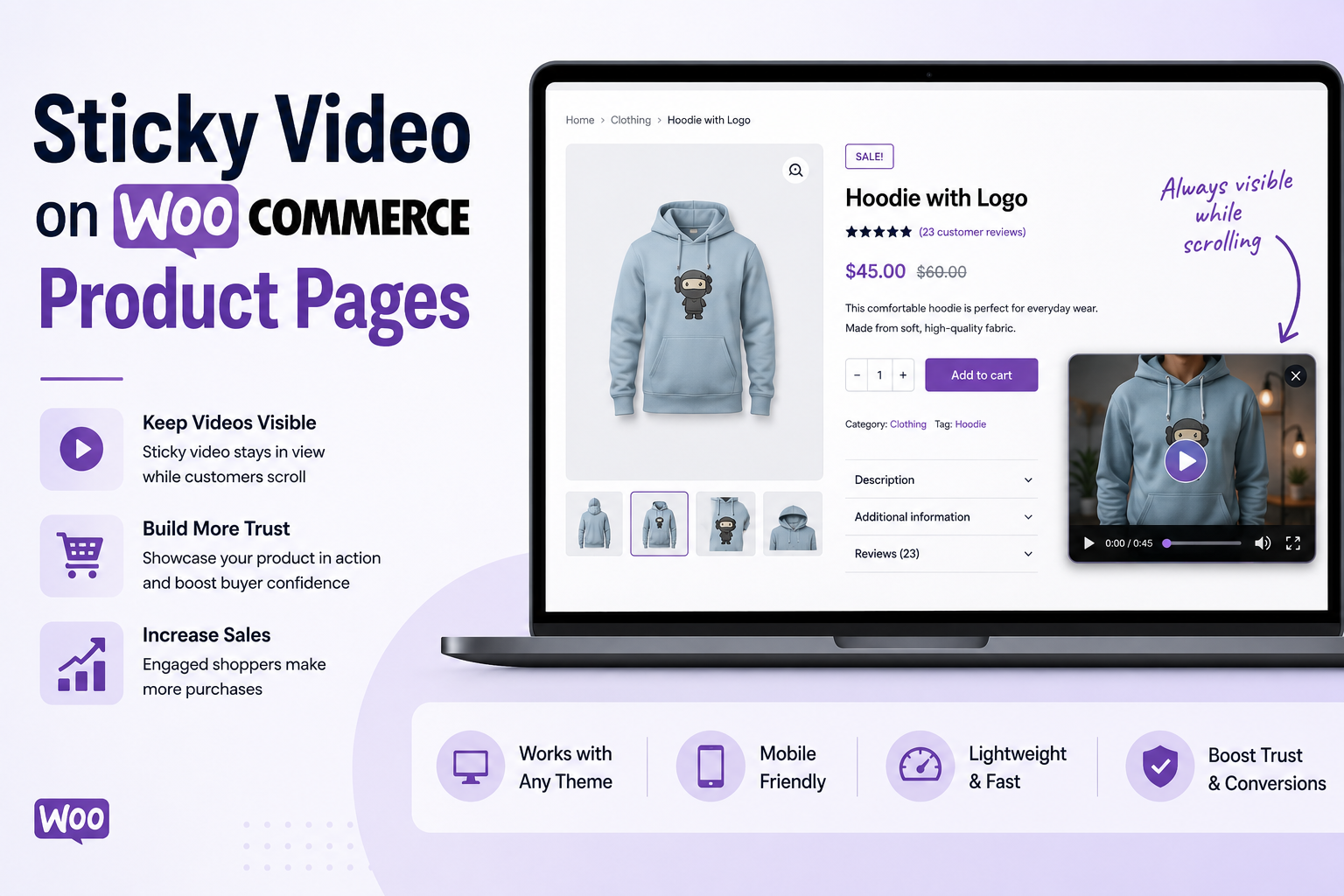
Most WooCommerce product pages have one big problem: the product video lives at the top of the page, and the moment the shopper starts scrolling to read the description, specs and reviews, the video is gone. Whatever persuasion you built into that video stops working exactly when the buying decision is being made. WooCommerce sticky video fixes this: the video starts in the product gallery, and when the shopper scrolls past it, the video docks to a corner of the viewport and keeps playing, staying in the corner of the eye while the customer reads everything else on the page.
This guide explains what WooCommerce sticky video is, why it works, the 4 corner positions available in the Video Gallery for WooCommerce plugin, and how to enable it on your store in under five minutes.
In this guide you will learn:
What WooCommerce sticky video is and how it works on a product page
Why sticky video keeps shoppers engaged longer than a static gallery video
The 4 corner positions and how to choose the right one for your store
Use cases where sticky video makes the biggest difference
How to enable sticky video on scroll in the Pro version of Video Gallery for WooCommerce
SEO and performance considerations
Common mistakes to avoid
What Is WooCommerce Sticky Video?
Sticky video (also called "floating video on scroll", "picture-in-picture product video" or "video pinned on scroll") is a behavior, not a placement. The video starts in the product gallery, exactly where the customer expects it. The moment the gallery scrolls out of view, the video shrinks and docks itself to a fixed corner of the browser window, where it keeps playing without interruption.
The customer keeps scrolling. They read the description, the specifications, the shipping info, the reviews. The video is still right there, in motion, in the corner of their eye. When the customer scrolls back up to the gallery, the video smoothly returns to its original position.
This is the same pattern YouTube uses with its mini-player, that Facebook uses for autoplay video in the feed, and that news sites use for video stories. It works because the human eye is naturally drawn to motion in peripheral vision. As long as the video is playing somewhere on the screen, attention stays anchored to the product.
Sticky Video vs Standard Product Gallery Video
A standard product gallery video is only visible while the customer is looking at the gallery. The moment they scroll down to read description, specs or reviews, the video disappears, and any persuasion built into it stops working.
WooCommerce sticky video keeps that persuasion working through the entire scroll. Even if the shopper is not actively watching, the video is registering in peripheral vision: motion, color, the product being used, hands interacting with it, the unboxing reveal. This is a meaningful difference in how a product page feels to a customer.
Why Sticky Video Keeps Shoppers Engaged
There are four mechanics behind why sticky video works.
1. Continuous Visibility During the Decision Window
Shoppers do not decide to buy in the first few seconds. They scroll, read, compare, look at reviews, check shipping. A standard gallery video makes its case only at the very start of that journey. Sticky video makes its case throughout it.
2. Motion in Peripheral Vision
Human attention is naturally drawn to movement at the edge of the field of view. Even when the shopper is consciously reading text, a small playing video in the corner is registering. This keeps people on the page longer because there is always something happening on screen.
3. Reinforcement Near the Buy Decision
On long product pages, secondary CTAs (Add to Cart buttons near reviews, in FAQs, or in sticky purchase bars) live below the gallery. With sticky video pinned to a corner, the product is still actively visible right as the shopper looks at those lower CTAs.
4. Lower Cognitive Friction
The shopper does not need to scroll back up to remember what the product looked like in action while they read specs or reviews. The information is already on the screen. Removing that friction makes the page feel easier to use.
The 4 Corner Positions for WooCommerce Sticky Video
The Pro version of Video Gallery for WooCommerce lets you choose any of 4 corner positions for the sticky video to dock into: bottom-right, bottom-left, top-right, or top-left. Each position has a use case, and the right choice depends on your theme layout and where your "Add to Cart" button lives.
Bottom-Right
Bottom-right is what most users intuitively expect, because it is what YouTube, Facebook, Vimeo and most major platforms use for their picture-in-picture mini player. The motor pattern is already trained.
Use Bottom-Right when:
Your theme is standard (left content, right sidebar or no sidebar)
Your "Add to Cart" button is on the left side of the product page
You want a familiar, unobtrusive position
You are not sure which position to pick - start here
Bottom-Left
Some WooCommerce themes place the product summary, price and "Add to Cart" button on the right side. If sticky video lands bottom-right in that layout, it can overlap with a sticky add-to-cart bar or the price block.
Use Bottom-Left when:
Your "Add to Cart" sits on the right side of the page
You use a right-side sticky purchase bar
You run RTL (right-to-left) stores in Arabic, Hebrew or similar languages
Top-Right
Top-right is the strongest position for products with long descriptions, technical specs or detailed how-to content. It puts the video high in the viewport so it is always near the heading of whatever section the customer is reading.
Use Top-Right when:
You have long-form product descriptions
You sell technical products that need explanation alongside the specs
You want maximum visibility (the top of the viewport gets more attention than the bottom)
You do not have a fixed top navigation bar that would clash with it
Top-Left
Top-left mimics the position of a featured image in editorial content. It works well for premium, design-led product pages where the video is part of the storytelling.
Use Top-Left when:
You sell premium or luxury products
Your product page reads more like an article than a spec sheet
Your brand identity is editorial or lifestyle-driven
Quick Decision Matrix
Theme layout | Recommended position |
|---|---|
Classic WooCommerce (left content) | Bottom-Right |
Right-side summary or sticky cart bar | Bottom-Left |
Long technical descriptions | Top-Right |
Premium or editorial / lifestyle | Top-Left |
RTL languages (Arabic, Hebrew) | Bottom-Left |
Use Cases Where Sticky Video Makes the Biggest Difference
Sticky video adds the most value on product pages where the shopper spends meaningful time reading. Here are the categories where it is most worth the setup.
Fashion and apparel - shoppers want to see fabric in motion and how the garment moves, while they read size charts and fit guides. Sticky video keeps the garment visually present while they read.
Home goods and furniture - scale, finish, texture and feel are the buying anxieties for these products. A sticky video showing the piece in a real setting reduces the abstraction of buying furniture online.
Consumer electronics and gadgets - technical products need explanation. A sticky demo plays through key features in parallel with customers reading specs and compatibility.
Cosmetics, skincare and wellness - texture, application and results are hard to communicate in text or static images. Sticky video keeps that visual proof present while the customer reads ingredients and reviews.
Food, drinks and specialty items - sticky video of the product being prepared, poured or served keeps appetite-led interest alive while the customer reads about ingredients and shipping.
Handmade and crafted goods - sticky video of the making process or close-up texture is a strong trust signal that continues while the buyer reads the maker's story.
How to Enable WooCommerce Sticky Video in Under 5 Minutes
The fastest way to enable sticky video on a WooCommerce store is the Video Gallery for WooCommerce plugin. The free version handles native gallery video integration and VideoObject schema. Sticky video on scroll is a Pro feature, included in all paid licenses.
Step 1: Install the Free Plugin First
In WordPress admin, go to Plugins > Add New
Search for "Video Gallery for WooCommerce"
Click Install Now, then Activate
Go to WooCommerce > Settings > Video Gallery to confirm setup
This gets your base video integration working with VideoObject schema for SEO.
Step 2: Add Your Product Video
Open any product in WordPress admin
Scroll down to the Product Video section
Upload an MP4 video file (the free version supports self-hosted videos)
Save the product
Confirm the video shows in the product gallery on the front end before continuing.
Step 3: Upgrade to Pro for Sticky Video and YouTube
WooCommerce sticky video, along with YouTube integration, is part of the Pro version of Video Gallery for WooCommerce. Pro pricing starts at $89 for a single site with one year of updates and support.
After activating your Pro license:
Go to WooCommerce > Settings > Video Gallery > Pro Features
Enable Sticky Video on Scroll
Choose your Sticky Position: Bottom-Right, Bottom-Left, Top-Right, or Top-Left
Save settings
Step 4: How Sticky Behavior Works
Once enabled, the behavior is automatic:
Trigger - sticky video activates the moment the gallery video scrolls out of the viewport
Continue playing - the video keeps the current timestamp when it docks to the corner, no restart
Close button - a small X button on the sticky player lets the customer dismiss it if they want
Return - when the customer scrolls back up to the gallery, the video returns to its original position
Step 5: Test Across Devices
Before announcing the change to customers, verify:
Desktop Chrome, Safari and Firefox - the video docks and undocks cleanly
Mobile Safari (iOS) and Chrome (Android) - the video does not block the buy button
The close button works
The sticky player does not overlap with chat widgets, cookie banners or sticky add-to-cart bars
If you find overlap with another sticky element on the page, switch to the opposite corner position.
SEO and Performance of Sticky Video
A common worry is that adding a sticky video element will slow the page or hurt SEO. Done correctly, it does neither.
Page Speed and Core Web Vitals
Sticky video on scroll is implemented as a CSS transform plus a small JavaScript hook on the scroll event. It does not load a second video file - the same <video> element is repositioned. There is no impact on Largest Contentful Paint (LCP), no impact on First Input Delay (FID), and a negligible impact on Cumulative Layout Shift (CLS) when properly configured.
The Video Gallery for WooCommerce plugin uses lazy loading by default, so the video file itself does not load until the user is near the gallery.
SEO Benefits
Sticky video improves the SEO signals that matter for product pages:
Time on page tends to rise because shoppers stay through more of the scroll
Engagement is stronger because the video keeps drawing attention
VideoObject schema is added automatically by the plugin, making your videos eligible for video-rich results and the video carousel in Google Search
Built-in Video Analytics in Pro
The Pro version includes built-in video analytics directly in the WordPress dashboard. You can track views, plays, and watch time / completion rate for each product video. This lets you measure which product videos engage your customers most and adjust accordingly, without setting up Google Analytics events manually.
Common Mistakes to Avoid
Sticky video with sound on - browsers block autoplay-with-sound on most devices, and customers find unexpected sound jarring. Set sticky video to play muted by default, with the option to unmute manually.
Sticky video overlapping the buy button - if your sticky video covers the "Add to Cart" button on mobile, you have effectively destroyed your own conversion path. Always test on a real phone, and switch corners if there is any overlap.
Conflicts with other sticky elements - chat widgets, cookie banners, "back to top" buttons and sticky add-to-cart bars all compete for the same screen real estate. Test with all your other sticky elements active and switch corners if there is overlap.
Looping a long video at full speed - a 60-second product demo that loops endlessly at full motion can become distracting over a long reading session. A 30-60 second video with a meaningful sequence, or a slow 360-degree rotation, works better than hyperactive fast-cut content.
Using the same generic video for every product - the sticky video should be the actual product video for that specific product, not a generic brand video copied across the catalog.
Skipping the mobile test - always test on a real iPhone and a real Android device before going live. Desktop testing alone misses mobile-specific overlap issues.
Frequently Asked Questions
Does sticky video on scroll work with YouTube videos?
Yes, in the Pro version. The Pro version of Video Gallery for WooCommerce supports both self-hosted MP4 video and YouTube URLs, and sticky video works with both. YouTube gives you free CDN delivery and zero bandwidth cost. Self-hosted gives you a cleaner player with no YouTube branding.
Will WooCommerce sticky video slow down my store?
No. The sticky behavior is a CSS and JavaScript transformation of an already-loaded video element. There is no additional file loaded, no additional HTTP request. Page speed and Core Web Vitals are not impacted.
Does the video continue playing or restart when it docks?
The video continues without interruption. The current timestamp is preserved when the player docks to the corner and again when it returns to the gallery position.
Can I pick a different sticky position per product?
The sticky position is a global setting that applies to all products on the store. This is the recommended approach for consistency - customers benefit from sticky behavior being predictable across your catalog.
Does sticky video work on mobile?
Yes, sticky video works on mobile devices by default in the same way it works on desktop. Test on real devices to make sure the sticky player does not overlap your mobile add-to-cart bar, chat widget or other sticky elements. If there is overlap, switch to a different corner position.
Can the customer close the sticky video if they do not want to see it?
Yes. The Pro sticky player includes a small close (X) button so customers can dismiss the docked video if they prefer to focus on reading.
How is sticky video different from picture-in-picture (PiP) browser mode?
Browser-native picture-in-picture is a feature the customer has to activate manually, and the resulting mini player floats above the entire operating system, not just your website. Sticky video on scroll is automatic, lives inside your website, and is part of your brand experience. For a WooCommerce product page, sticky video on scroll is the right choice.
Will sticky video help my SEO?
Indirectly, yes. Sticky video tends to increase time on page and engagement, both of which feed into Google ranking signals. The plugin also automatically adds VideoObject schema, which makes your product videos eligible for the video carousel in Google Search results.
What is the difference between the free and Pro version?
The free version handles core video gallery integration: adding a product video to the gallery, customizable video icon and styling, basic playback controls, and VideoObject schema for SEO. The Pro version adds sticky video on scroll with 4 corner positions, multiple videos per product (up to 6), YouTube integration, custom SEO metadata per video, built-in video analytics, priority support, and one year of updates.
How much does Pro cost?
Single-site licenses start at $89 for one year of updates and support. Three-site licenses are $149. Unlimited-site licenses are $299. See the full pricing page for current offers.
Conclusion
WooCommerce sticky video is a small, low-effort change that meaningfully improves how a product page feels. The product video stays visible exactly when the customer is doing the most reading and thinking, and the customer can dismiss it whenever they want. There is no impact on page speed, and the plugin handles the technical implementation for you.
Recommended next steps:
Install the free Video Gallery for WooCommerce plugin
Add a product video to your top 5 highest-traffic products
Confirm the base integration is working in the gallery
Upgrade to Pro to enable sticky video on scroll and YouTube integration
Pick the right corner position for your theme (start with Bottom-Right if unsure)
Test thoroughly on desktop and mobile before announcing the change